
Create your first geology project and navigate the app
The main menu and project manager: create, open, duplicate and back up field projects on your tablet.
Create your first geology project and navigate the app
Main Menu
The main menu appears as a dialog with the application logo. On startup, it may take a few seconds to appear. If the delay is excessive, try tapping the logo directly.
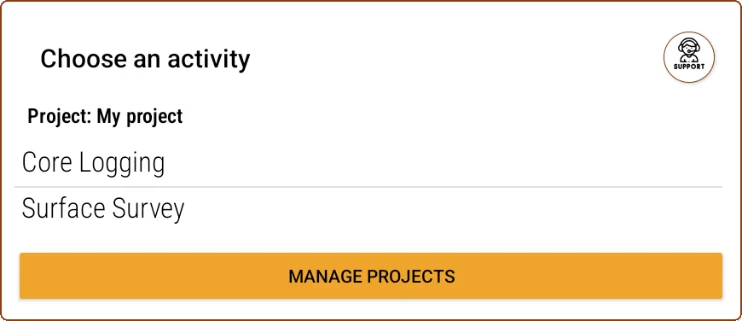
This window shows the active project, followed by the list of available activities and, at the bottom, a button to manage projects. In the upper right corner, you will find access to support.
Each project offers two main types of activities:
- Surface Survey: Presents a 2D map interface that lets you open, navigate, add, modify, and view vector layers (applying different styles),rasters and other resources. It is ideal for drawing geological maps, reviewing geochemical samples, recording structures, and collecting field data. It supports satellite imagery, contour lines, or any raster as a cartographic base.
- Core Logging: Offers a graphic strip view (strip log) where the main features of drill holes can be represented graphically. It also allows manipulating data tables in layers. It is useful for logging core and describing lithologies, alterations, mineralizations, and more, with programmable assistance.
The support button opens the Support window, where you download the manuals and video tutorials, manage the device's license and get general and troubleshooting help (see Support window).
To return to the main menu from any activity or from the project manager, simply press the Back key until you see the screen with the logo.
When you open the application, both in this window and inside an activity, Field Manager notices may appear. If any of them raises a doubt, see Notices and notifications.
Project Manager
Projects are saved in the /Fieldman projects folder, inside the system's documents directory (usually /Documents/Fieldman projects). Each subfolder corresponds to a project and contains all its information, including the database.fmp file, a Spatialite-format database with its own structure. This file stores all project data, except raster images, which are read directly from their original location.
From the manager, accessible from the main menu, you can create and manage projects and templates. The interface presents a list of items, each with an options button, and an additional button to create new projects using the default template.
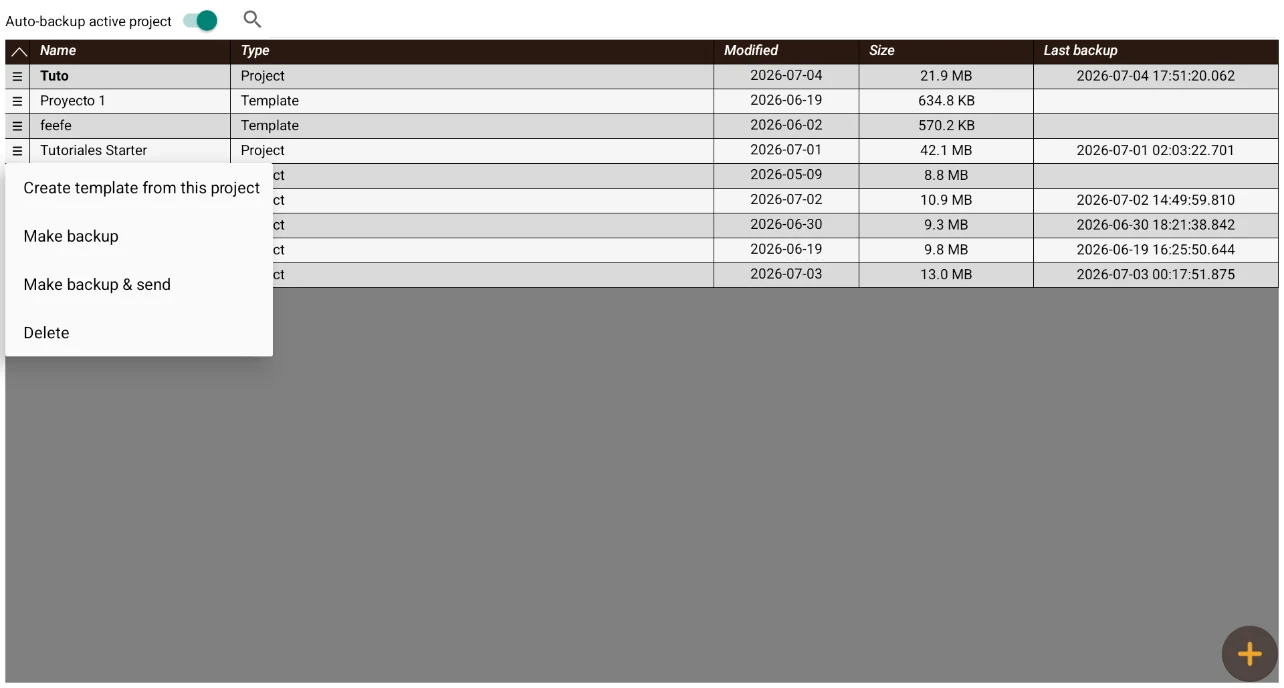
- To open a project, simply tap its name; the system will return to the main menu with that project active. The selected project will open automatically together with the application until you select a different one.
- To create a new one, press the
 button in the lower right corner, type a name, and confirm. A new project based on the default template will be generated.
 - You can also generate a project from a template by tapping it and filling in the name. This will include predefined structures such as tables (empty), styles, layers, settings, etc.
By tapping a project's menu icon, you access the following options:
- Create template: Generates a template without data from the selected project and with the given name. The template keeps all the project's metadata but does not include rasters or table contents. (Template files are stored in the/Documents/Fieldman projects/templates)
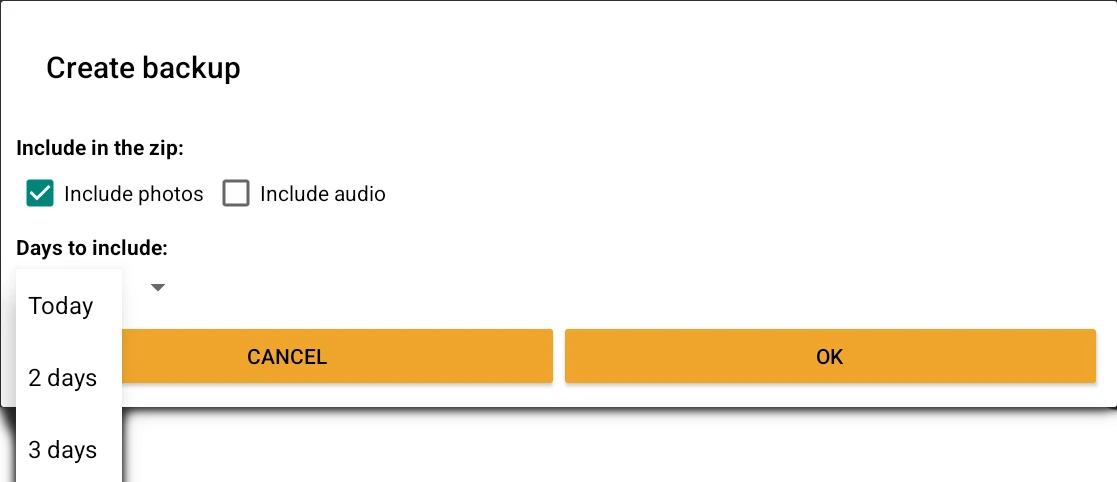
- Create backup: Creates a .zip file with the database.fmp. Before building it, a dialog appears with the "Include in the zip:" block - the independent Include photos and Include audio checkboxes - and the "Days to include:" picker (Today, 2 days, 3 days, 4 days, 5 days, 6 days, 7 days, 15 days, 30 days or All), so you can take just the database, the database plus the day's photos, or everything. It is saved in the Backups subfolder in the project folder, named with date and time.
- Backup and send: Same as the previous one, but lets you share the file via email, messaging, etc.
- Rename: Changes the project name (and that of its folder).
- Delete: Completely deletes the project folder. This action is irreversible. You can also do it manually from storage.
To exit the manager, press your device's Back key.
Automatic backup: By enabling Auto-backup, the application will make a daily backup of the active project, at the time set next to the switch. In the project list, the Last backup column shows the date and time of each project's most recent backup, and from the context menu you can force a manual backup at any time. The backup time is approximate: Android may delay its execution by a few minutes or hours depending on its battery optimization, and if the project is open at that very moment, that day’s scheduled backup will be made the next time you open the app.
Where the data lives and how it's shared
Offline work and cloud storage
Field Manager is designed to work offline: the project lives entirely on the tablet and doesn't need internet to survey, draw, log or query data already loaded. A connection is only needed for four specific things: checking the license every so often, downloading basemaps before heading out to the field (see Offline Maps), querying live WMS services, and transcribing audio with AI (see Geocoders).
Move data to another device
Switching tablets is two separate procedures: the license transfers from the web portal, and the data is copied by hand, since it doesn't travel with it. The step-by-step for both is in Troubleshooting.
You've read enough. Try it with your own project.
20 days free, with your data. If you get stuck: the manual — and us.
Secure payment with Stripe · Cancel anytime.